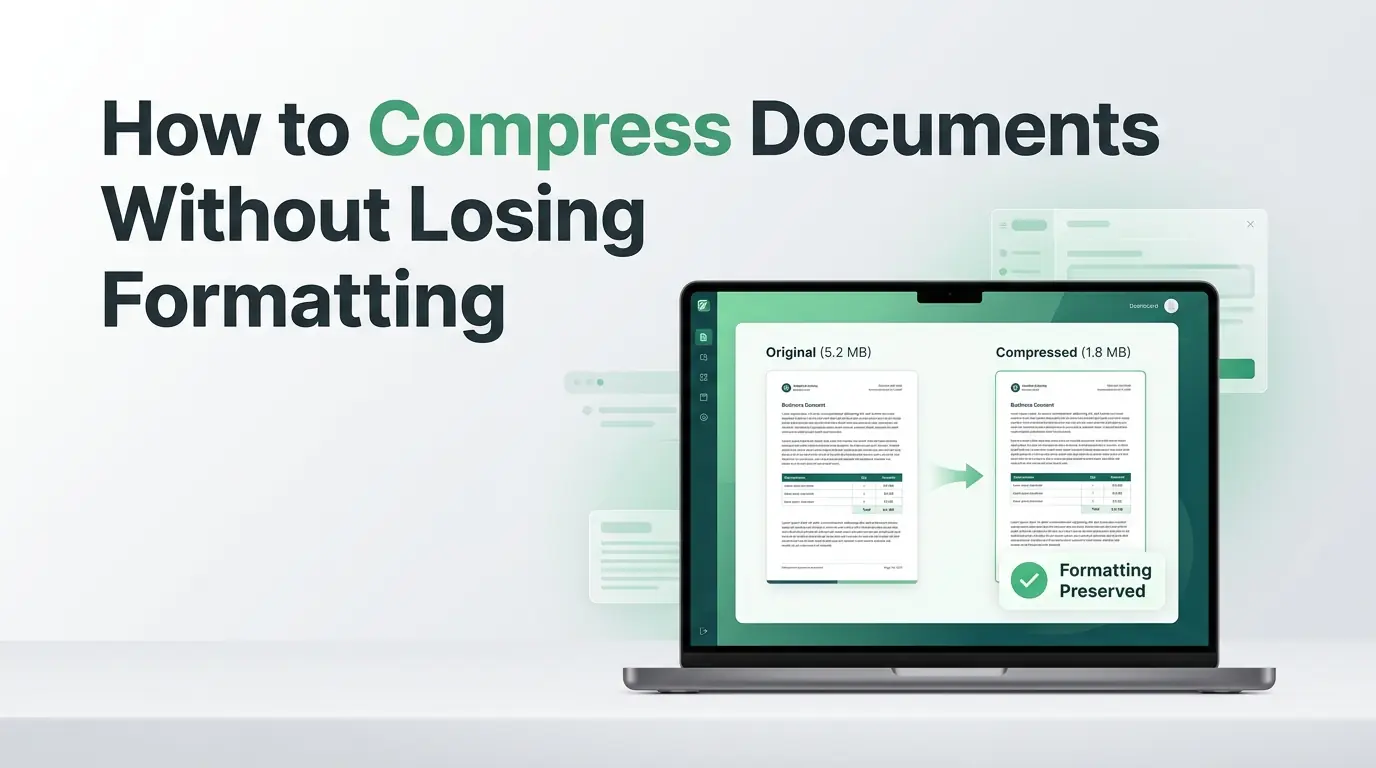
How to Compress Documents Without Losing Formatting
Are large document files messing up your emails? Learn how to shrink file sizes using a reliable document compressor without breaking your layout.
Introduction
You spent hours designing a gorgeous business proposal or a detailed guide for your blog. Every single headline aligns perfectly, your custom fonts look incredibly sharp, and your images sit exactly where they belong. You export the file, attach it to a vital email, and click send. Suddenly, your computer screen flashes a red warning telling you the file is far too big to send. Or worse, the file delivers, but when your client opens it, your beautiful layout collapses into an ugly mess of broken tables and missing images.
Document file sizes can become shockingly large without you even realizing it. This creates major everyday roadblocks for freelancers, bloggers, and business owners who rely on swift digital communication. Oversized documents clog your email outbox, take ages to upload to cloud storage, and confuse your team members. The ultimate challenge is shrinking that heavy data footprint while keeping your precise design and text layout completely intact.
Nobody wants to share a document that looks messy or unprofessional to customers. In this helpful guide, you will learn exactly how to shrink your files safely. We will explore what causes document bloating, how to preserve your layout, and how a dedicated Document Compressor solves your file problems in seconds.
Why Document Compression Matters
Faster File Sharing
In our fast-paced digital world, speed is everything. When you are trying to beat a tight business deadline, you cannot afford to wait twenty minutes for a heavy presentation to upload to a shared folder. Compressing your files ensures your email attachments send instantly and your team collaboration loops run smoothly without annoying delays.
Reduced Storage Requirements
Every single gigabyte of data you save on your computer or cloud drive counts toward your monthly wallet expenses. Digital clutter builds up fast when you archive years of business contracts and blog drafts. Shrinking your files keeps your digital workspace tidy and lowers your ongoing cloud storage subscription costs.
Improved Productivity
Small files make your daily workflow feel incredibly light and responsive. Your clients can download your invoices onto their mobile phones instantly while sitting in a coffee shop. Managing a library of lightweight files reduces your administrative headaches and keeps your business moving forward.
What Causes Documents to Become Large?
High-resolution images are the primary culprits behind oversized text files. If you snap a crystal-clear photo with your modern smartphone and drop it straight into a report, that single picture brings megabytes of heavy weight with it.
Embedded graphics and complex charts also add unexpected data layers to your file structure. Furthermore, using rare custom fonts forces the file to carry the entire font package inside itself so the next reader can see it. Scanned pages act like giant, heavy photographs rather than simple text, which multiplies the overall file weight. Excessive formatting elements, hidden revision histories, and multiple embedded media objects can quickly turn a simple three-page document into a storage nightmare.
What Does "Losing Formatting" Mean?
Layout Changes
When an unoptimized file undergoes harsh data reduction, the internal structure can break. Your carefully aligned text columns might suddenly shift, pushing important signature lines onto empty trailing pages.
Font Substitutions
If a compression tool handles your text poorly, it might strip away your custom font styles. The receiving computer will automatically replace your beautiful headings with a generic, ugly font that ruins the visual personality of your brand.
Missing Images
Aggressive file reduction can sometimes disconnect your pictures from the text flow entirely. Your readers will see empty white boxes or broken link icons instead of the helpful diagrams and product photos you intended to show.
Broken Tables and Charts
Data tables rely on very precise spacing coordinates inside a file. Poor compression often scrambles these coordinates, causing your columns to overlap and turning your financial data into an unreadable puzzle.
Incorrect Page Breaks
When file code gets squeezed too violently, natural page boundaries disappear. Your table of contents might split in half, and your chapters might start awkwardly in the middle of a random page.
Why Some Compression Methods Cause Problems
Most layout issues happen when people use generic, aggressive optimization software that throws away vital layout code to achieve a tiny file size. Using unsupported file formats or converting between different software platforms back and forth will also mangle the internal design rules of your document.
Best Document Formats for Preserving Formatting
The Portable Document Format is the absolute king of layout security. It locks your text, fonts, and images into a rigid digital blueprint that looks exactly the same on any screen, making it perfect for invoices and official ebooks.
DOCX
This modern Microsoft Word format is the industry standard for editing and team collaboration. It organizes text data cleanly, though its layout can still change slightly depending on the version of the software your reader uses.
XLSX
This is the standard container for complex spreadsheets and financial ledgers. It holds massive amounts of mathematical data and grid layouts, but it requires careful optimization to keep charts from glitching.
PPTX
The go-to container for slide presentations and pitch decks. It carries heavy visual data and animations, which means it requires a lot of compression attention before you share it online.
Format Comparison Table
| Document file format | Editing Flexibility | Layout Reliability | Best Business Use Case |
|---|---|---|---|
| Very Low | Absolute Perfect | Invoices and Final Proposals | |
| DOCX | Extremely High | Moderate | Content Writing and Drafts |
| XLSX | Extremely High | High | Financial Planning and Ledgers |
| PPTX | High | High | Client Pitch Decks and Slide Shows |
How to Compress Documents Without Losing Formatting
- Open your internet browser and navigate directly to the trusted homepage of multicompressor.com to use the document tool.
- Examine your original file properties to see if heavy graphics or scanned images are causing the large size.
- Drop your document file into the secure online upload zone of the compressor.
- Select a balanced optimization setting that trims away hidden metadata while preserving your text layout and embedded fonts.
- Click the compress button and wait a few short seconds for the advanced system to pack your data efficiently.
- Download your new lightweight document and review the visual layout to ensure every element remains perfectly in place.
How to Compress PDF Files Without Formatting Issues
To keep your PDF files looking flawless, you must focus on optimizing the images hidden inside the pages. A smart document compressor will lower the pixel density of large photos without making them look blurry to the human eye.
You should always look for settings that preserve embedded fonts so your typography stays beautiful. Cleaning out hidden metadata, such as old author notes and editing timestamps, will shave off extra kilobytes naturally. Most importantly, quality optimization tools will shrink the file size while keeping important accessibility features, like text-to-speech tags, completely functional for your readers.
How to Compress Word Documents Without Formatting Issues
When you are working inside Word documents, your first line of defense is shrinking your image sizes. Word has an internal tool that allows you to compress all pictures at once and crop away unused image areas permanently.
Avoid using exotic, unsupported fonts that require heavy embedding data to display properly on other computers. You should also clear out your old revision history and track-changes data before your final save, as this hidden text bloats your files over time. Finally, make sure to compress any embedded charts or objects so they do not weigh down your clean text pages.
How to Compress Scanned Documents
Why Scans Create Large Files
When you use an office machine to scan a physical piece of paper, the computer does not see letters or words. It sees a massive, high-definition photograph of a paper surface. Because it is saving millions of colored pixels instead of simple text characters, the file size becomes instantly huge.
OCR and File Size
Optical Character Recognition, which people call OCR, is a brilliant technology that solves this exact issue. It analyzes the scanned picture, recognizes the shapes of the letters, and converts the image into actual editable text data.
Balancing Readability and Compression
By running a scanned page through OCR, you can delete the heavy background image entirely and keep just the lightweight text. If you must keep the original visual look of the paper, you should use grayscale settings instead of full color to balance readability with a low file weight.
Best Practices for Archiving Scans
When saving long-term business archives of scanned papers, always choose a compressed PDF format. This keeps the document highly readable for your future accounting audits while saving valuable space on your company backup drives.
Common Mistakes to Avoid
Converting Between Too Many Formats
One of the biggest errors people make is shifting a document through too many software types. If you convert a file from Word to a Google Doc, then to a PDF, and back to Word, your layout code will eventually break apart.
Compressing Multiple Times
Never run the exact same document through an optimization tool repeatedly. Squeezing an already compressed file will cause your images to look pixelated and can corrupt the internal file settings permanently.
Removing Embedded Fonts
If you strip out your font packages to save a tiny bit of space, your document will look completely different on your client's computer. Always keep essential fonts embedded so your visual branding remains intact.
Over-Optimizing Images
Shrinking your images too aggressively will turn your helpful product photos into blurry, unreadable squares. Always maintain a moderate level of image clarity so your graphics still look professional on high-definition screens.
Ignoring Compatibility Requirements
Always consider what software your recipient uses before you send a compressed file. Sending a highly specialized, compressed file type to an older computer will only cause confusion and delay your business deals.
Benefits of Proper Document Compression
Using a quality compressor brings wonderful advantages to your online ventures and daily office tasks. It transforms how you handle communication.
- Your emails will send instantly without ever bouncing back due to size errors.
- Your website download links will load swiftly for your blog visitors.
- You will slash your monthly cloud storage bills by using less drive space.
- Your documents will look incredibly professional and sharp on any device.
- Your team can share and edit files concurrently without computer lag.
Document Compression Best Practices Checklist
- Choose the right file format for your specific project goal.
- Resize and crop your images before you paste them into your pages.
- Ensure your essential custom fonts stay embedded in final PDF versions.
- Clear away old editing histories and unneeded metadata to save space.
- Review your layout visually after running any compression tool.
- Always save a clean original copy of your document as a safe backup.
1. Can documents be compressed without changing formatting?
Yes, you can absolutely shrink your document files without losing your layout, fonts, or images. Modern compression tools focus on removing invisible data, like old editing histories and repetitive computer code, which allows the file size to drop while leaving the visual design completely untouched.
2. Why do some compressed documents look different?
Documents look different when you use low-quality or overly aggressive software that discards vital formatting instructions to save space. If the compression tool strips out your embedded font files or alignment data, the receiving computer will display a broken, messy layout.
3. Does PDF compression affect quality?
Standard PDF optimization does not reduce text or layout quality at all. It gently lowers the resolution of heavy background images to a safe level that still looks excellent on everyday laptop screens and mobile devices, giving you a smaller file size with great clarity.
4. What is the best format for preserving document layout?
The absolute best format for locking down your design is PDF. It acts like a digital snapshot of your document, ensuring that your text wrapping, font styles, and graphics remain in their exact positions regardless of what computer opens the file.
5. How much can document size be reduced safely?
Depending on how many heavy images and hidden metadata files are tucked inside your original document, you can easily expect a size reduction of fifty to eighty percent using the compressor at multicompressor.com without hurting your layout.
Are scanned documents harder to compress?
Yes, scanned pages are naturally heavier because computers treat them as large photographs rather than simple text characters. However, by using a specialized optimizer or applying OCR text conversion, you can safely bring their data weight down into a very manageable zone.
Wrapping Things Up
Creating high-quality content, detailed business proposals, and engaging digital guides is a wonderful way to connect with your target market. However, you must always ensure that your files are lean enough to move freely across the internet. Large, unoptimized files will only slow down your business operations and frustrate your audience.
You do not need to be a technical software genius to manage your file sizes properly. By choosing the right document format, optimizing your images before you build your pages, and utilizing the free compression tools at multicompressor.com, you solve your document headaches effortlessly. Build a reliable daily habit of checking your file sizes before you send them out. This simple extra step ensures your brand always looks polished, fast, and completely professional to the entire world.
Related Articles
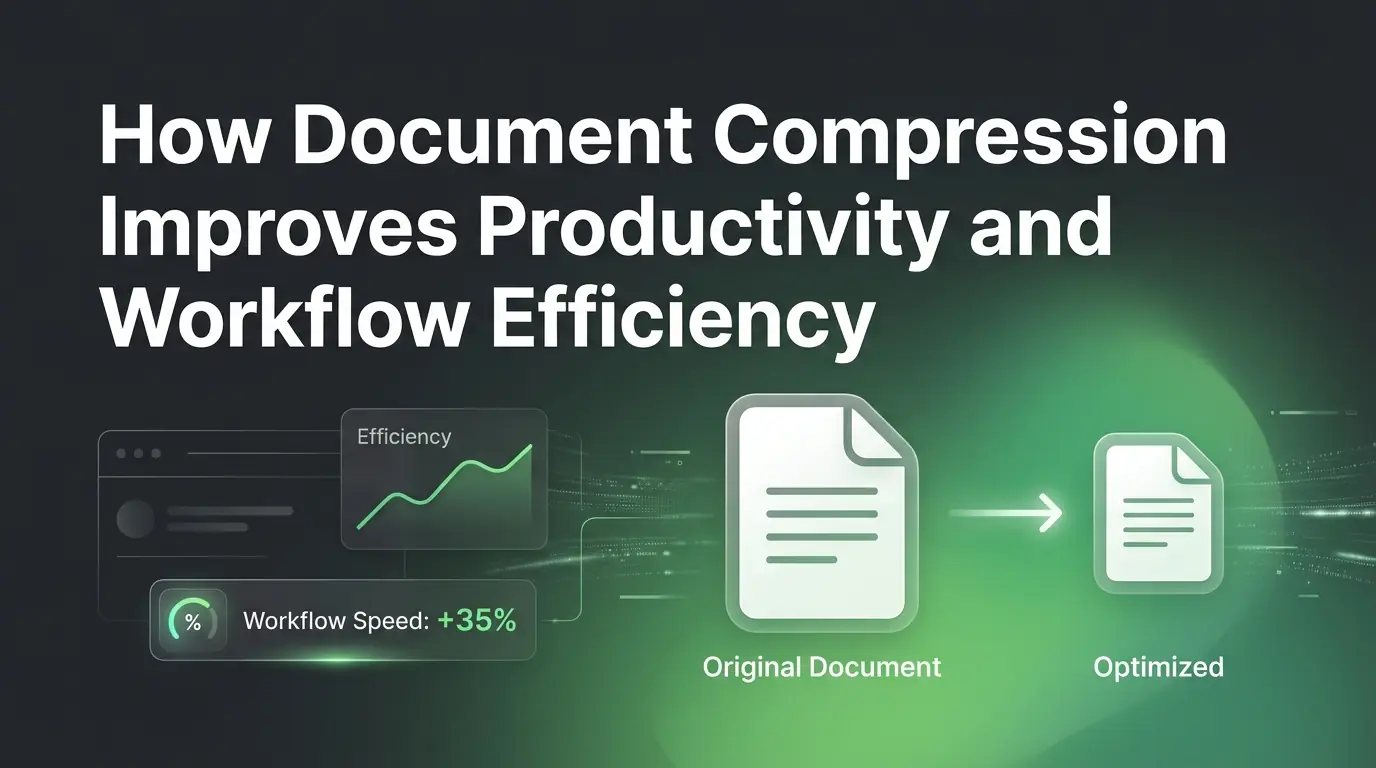
How Document Compression Improves Productivity and Workflow Efficiency
Learn how using a document compressor boosts your daily productivity. Squeeze file sizes, speed up cloud sharing, and build a faster, better digital workflow.
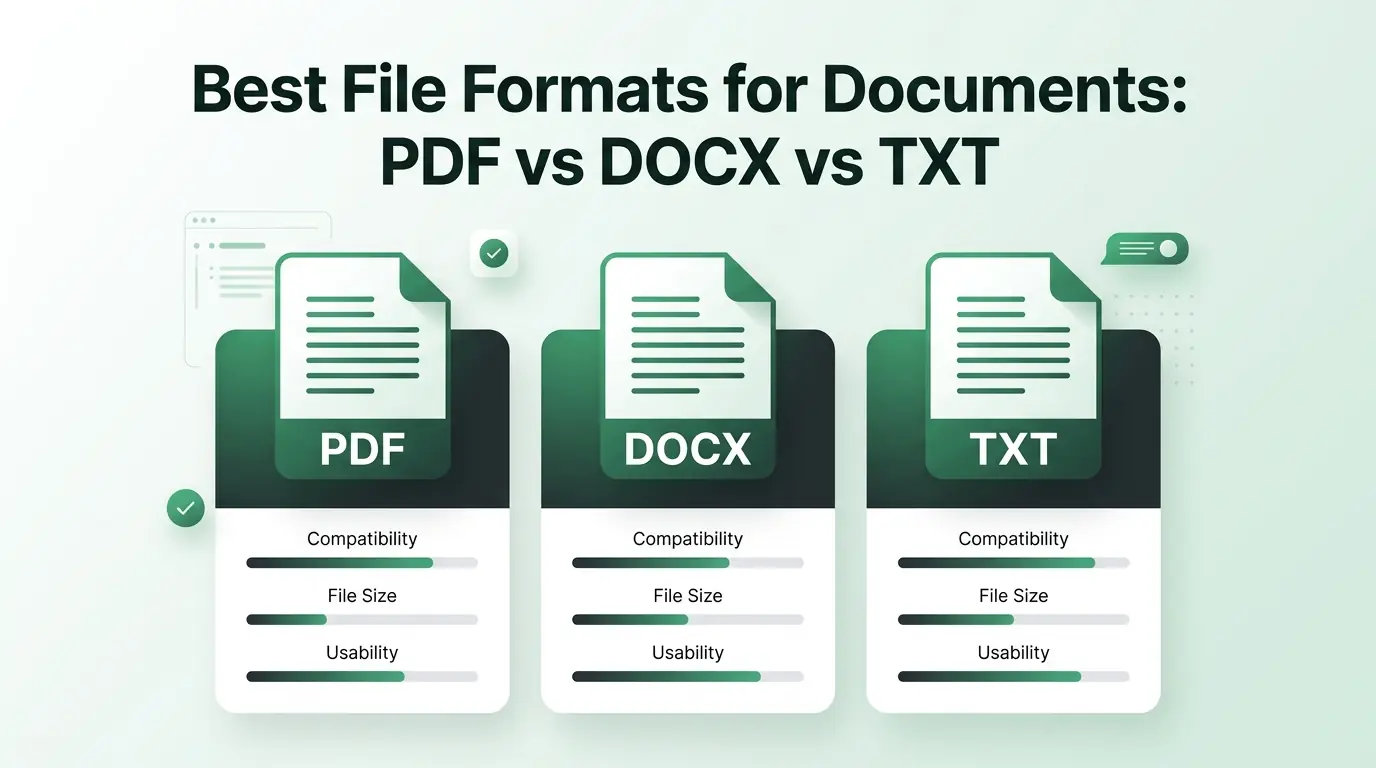
Best File Formats for Documents: PDF vs DOCX vs TXT
Choose the best file formats for documents. Learn when to use PDF, DOCX, or TXT, and how a document compressor keeps your files small and easy to share.

Why Large PDF Files Slow Down Your Workflow and How to Fix It
Are heavy documents ruining your productivity? Discover amazing PDF compress benefits and fix slow workflows today with a reliable PDF compressor.